Setup you do once. After that the photos file themselves.
The recording is narrated in Czech and the on-screen app is in Czech. The written guide below covers the same ground in English and is the primary version here — an English recording is planned.
The player is loaded from YouTube (Google Ireland Ltd.) only after you click. Nothing is sent to Google before that. Once you click, Google receives your IP address, your device and browser data, and may write its own storage to your browser. Details in the cookie policy.
 4:49
4:49
Stops further loading; what has already been sent cannot be recalled. Open on YouTube (opens YouTube, so Google sees the visit) Video not appearing? Some clinic networks block YouTube — use the link beside this, or read the written guide below.
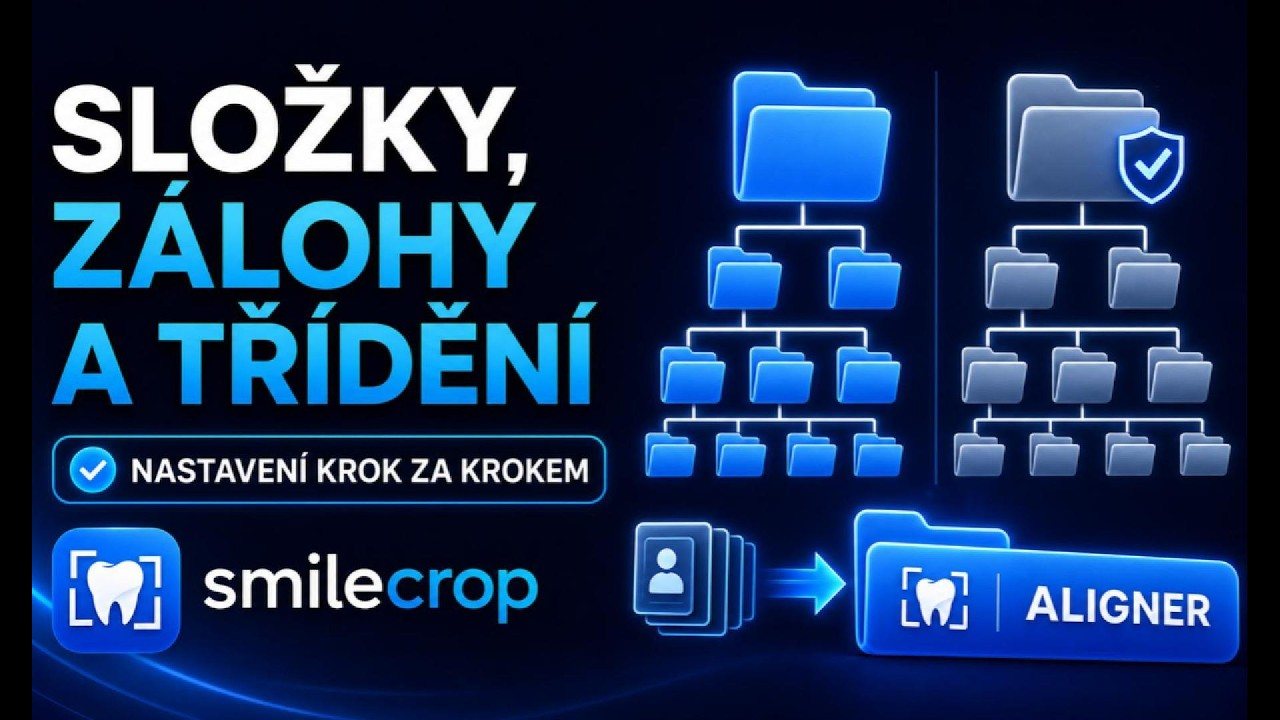
In Settings → Folders you assemble how a patient folder should be named — name, date, ID, in whatever order suits your practice. A live preview shows the result as you build it, so nothing has to be tried blind.
Individual file names are assembled the same way. The photo type is filled in automatically from whatever the software recognised.
The backup keeps untouched originals to one side. It is a precondition for non-destructive edits — without the original there is nothing to return to, and re-saving a JPEG repeatedly costs quality.
Before the series you photograph the patient's QR name tag, generated free by SmileQR. That is how the software knows whose series it is and which folder to create. No typing, no confusing similar surnames.
It happens with a blurred or over-exposed frame. The software says so and offers to let you copy the name and ID across by hand; the batch then finishes normally.