
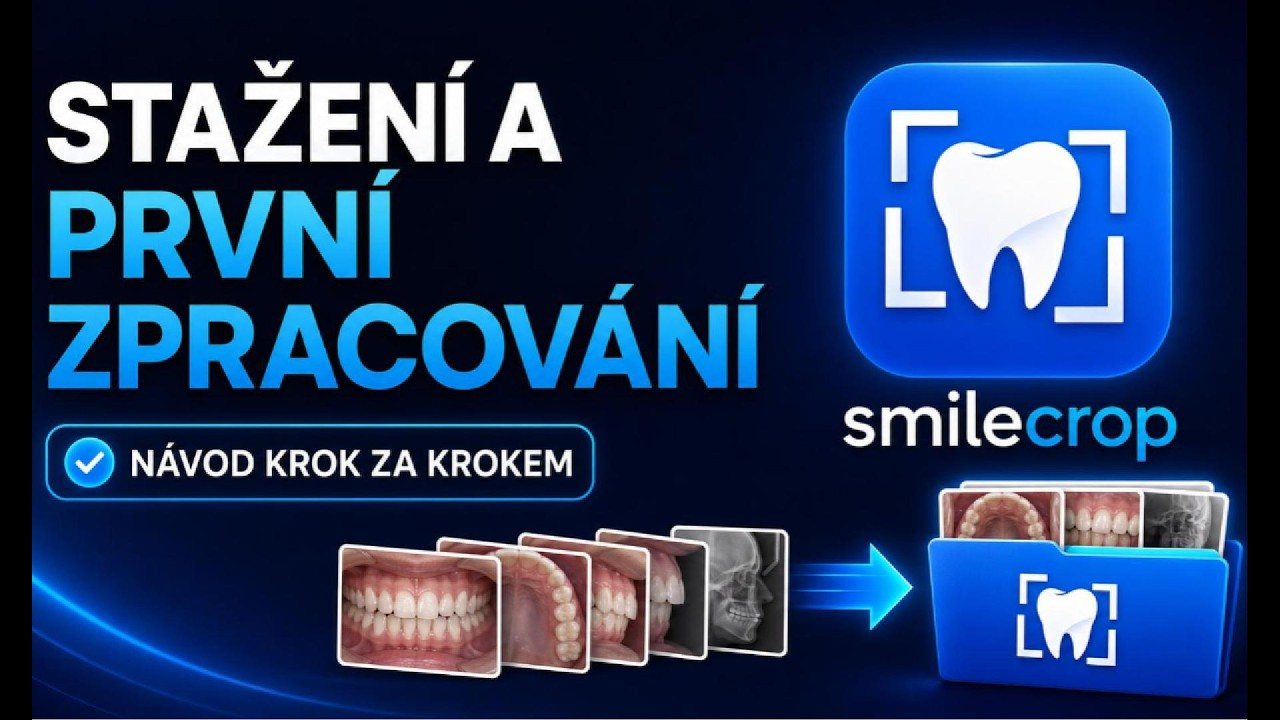
This guide covers the whole path from downloading the app to a first finished series in a patient folder.
The recording is narrated in Czech and the on-screen app is in Czech. The written guide below covers the same ground in English and is the primary version here — an English recording is planned.
The player is loaded from YouTube (Google Ireland Ltd.) only after you click. Nothing is sent to Google before that. Once you click, Google receives your IP address, your device and browser data, and may write its own storage to your browser. Details in the cookie policy.
 3:27
3:27
Stops further loading; what has already been sent cannot be recalled. Open on YouTube (opens YouTube, so Google sees the visit) Video not appearing? Some clinic networks block YouTube — use the link beside this, or read the written guide below.
SmileCrop is a desktop application for Windows 10 and 11. It is downloaded from the Download page; installation and later updates are handled by the Microsoft Store.
The full version runs for 14 days with no credit card. A licence can be added at any point afterwards and your settings are kept.
Input is the folder or SD card holding the camera's photos. Output is where finished patient folders should be written. Both are set once and remembered.
The app works through the batch on its own: it recognises each photo's type, crops it, rotates it, names it and files it. You do not have to watch — put the card in and go and do something else, or leave a batch running overnight.
Photos the software was not confident about are listed in the main window after the batch. Double-click opens one in the editor with a suggested crop and type; you check it, adjust if needed, and save. In a measured batch of 456 photos, 33 of them — 7.2% were flagged.